React JS
Install CADViewer
1A: Install CADViewer from: npm i cadviewer , see the CADViewer package on npm for more information.
1B: In your /public folder create the assets/cadviewer/ folder, then unzip and add the content from the CADViewer assets file: assets_cadviewer.zip (the folder structure will be /assets/cadviewer/app/…). The assets can also be found in the /node_modules/cadviewer/dist/assets/ folder after installation.
As an alternative:
2: Install our sample implementation of a React App implementing CADViewer by cloning from Github: cadviewer-testapp-react-01 (class components, live demo) or cadviewer-testapp-react-02 (hooks / functional components, live demo)
For both methods 1: and 2: , then do the following:
Install CAD Conversion Server
Download the Node JS CAD Conversion server (or alternatively the PHP, .NET or Servlet Server implementations): Go to: https://cadviewer.com/download/, register and receive email and then download from CADViewer Handler/Connector Scripts, alternatively pull from github: cadviewer-conversion-server.
Use the NodeJS CADServer instructions.
Install Converters
If you want to implement your own business logic for converting AutoCAD DWG, DXF, DWF, MicroStation DGN, Adobe PDF, W3C SVG, and several bitmap file types to serve to CADViewer, then download the CAD Converter AutoXchange 2026: Go to: https://cadviewer.com/download/, register and receive email and then download from AutoXchange 2026 Downloads. If downloading and installing the converter, then follow the AutoXchange 2026 Tech Docs for instructions.
If you are using the Node JS CAD Server, then the converter is part of the CAD Conversion server structure and already implemented.
Reference Sample
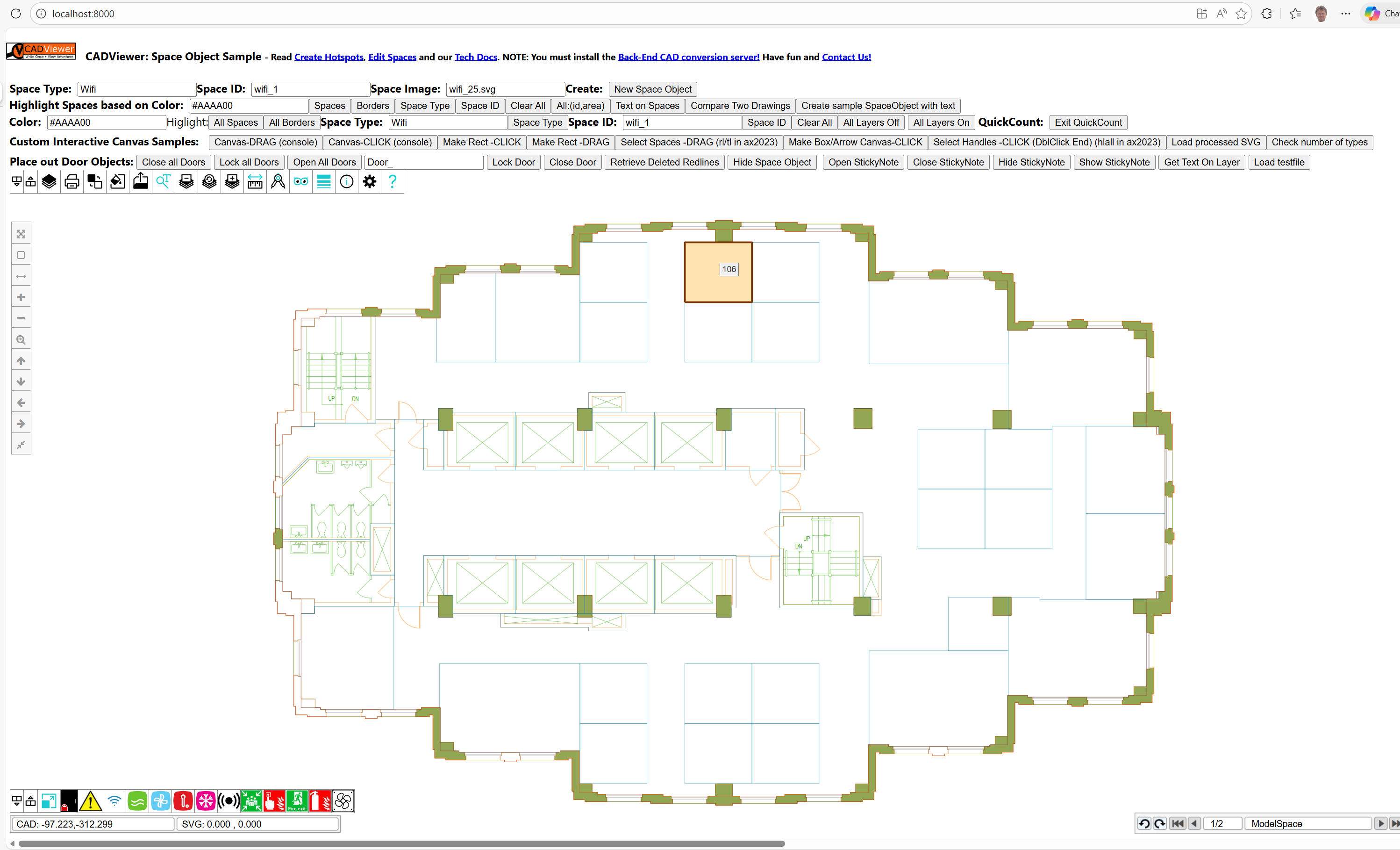
Use the Github cadviewer-testapp-react-01 as reference sample. This sample illustrates initialization and loading of CADViewer as well as illustrates the functional interface for highlight and adding interactive image content to the CAD canvas.
Try the samples online: React class components demo and React hooks / functional components demo (source).
Bookkeeping paths
Note that the path book-keeping is important for proper initialization, where the ServerBackEndUrl and ServerLocation is the location and Url of the CAD Server and ServerUrl is the Url of the React application encapulating CADViewer.
	var ServerBackEndUrl = "http://localhost:3000/";
	var ServerUrl = "http://localhost:8000/";
	var ServerLocation = "";
See the API documentation for initialization:
- cvjs_setAllServerPaths_and_Handlers() - required
General Information
LICENSE: TMS 1.0: Use freely on localhost. Commercial use requires licensing, both using entirely or in parts. Forbidden to remove license key check. Contact Tailor Made Software, https://cadviewer.com/contact , for more information.
Use the CADViewer API to open and manipulate drawings in your application.
Use our five guides to learn to manipulate interactive content:
Read the Guide on how to create hotspots (Space Objects), it outlines how spaces can be processed on a drawing to create interactive objects.
Read the Guide on how to add or modify hotspots & images (Space Objects), this will help you work with the code in this sample.
Read the Guide on how to style hotspots (Space Objects).
Read the Guide to introduce The Canvas API.
And finish off by learning how to Retain AutoCAD Handles in drawings.
Read the general documentation on CADViewer is found at: https://cadviewer.com/cadviewertechdocs/ .
The general documentation on AutoXchange 2026 is found at: https://cadviewer.com/autoxchangetechdocs/ .
The CADViewer API is found at: https://cadviewer.com/cadviewerproapi/global.html .
CADViewer Sample
The sample loads a drawing with interactive Spaces, Area Calculation on Spaces, as well as helper methods to do various interaction with CADViewer.