
User Management
User Management
The Dashboard provides a comprehensive Users pane where administrators can manage all registered accounts and tenants on the Conversion Server.
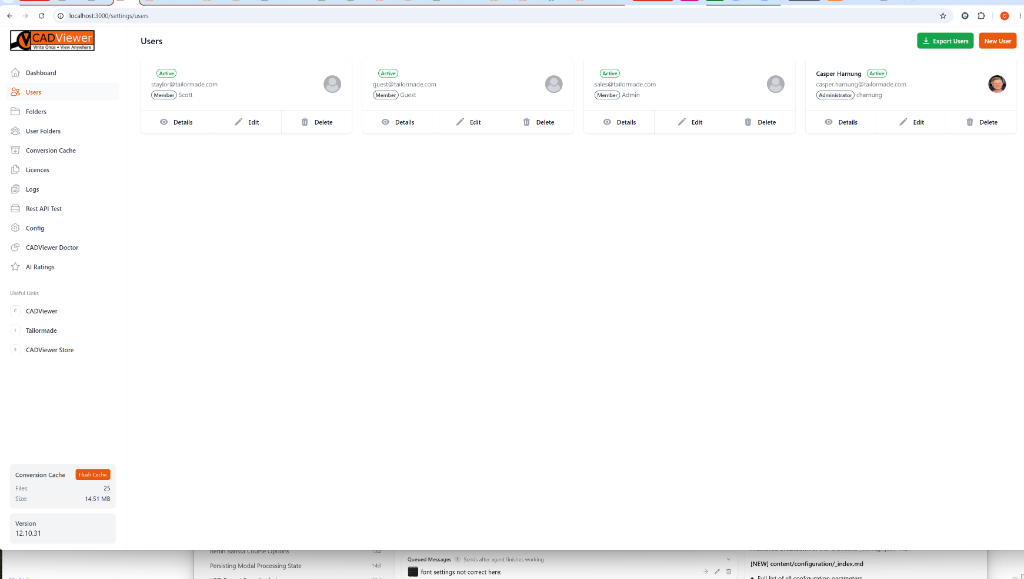
This card-based layout allows you to quickly see at a glance:
- The user’s Username and Email Address
- Their Role (e.g., Member or Administrator)
- Their current account Status (e.g., Active)
From this screen, administrators can quickly provision a New User or Export Users to a file using the buttons in the top right.
User Details & Actions
Clicking the Details button on any user card brings up an in-depth profile modal.
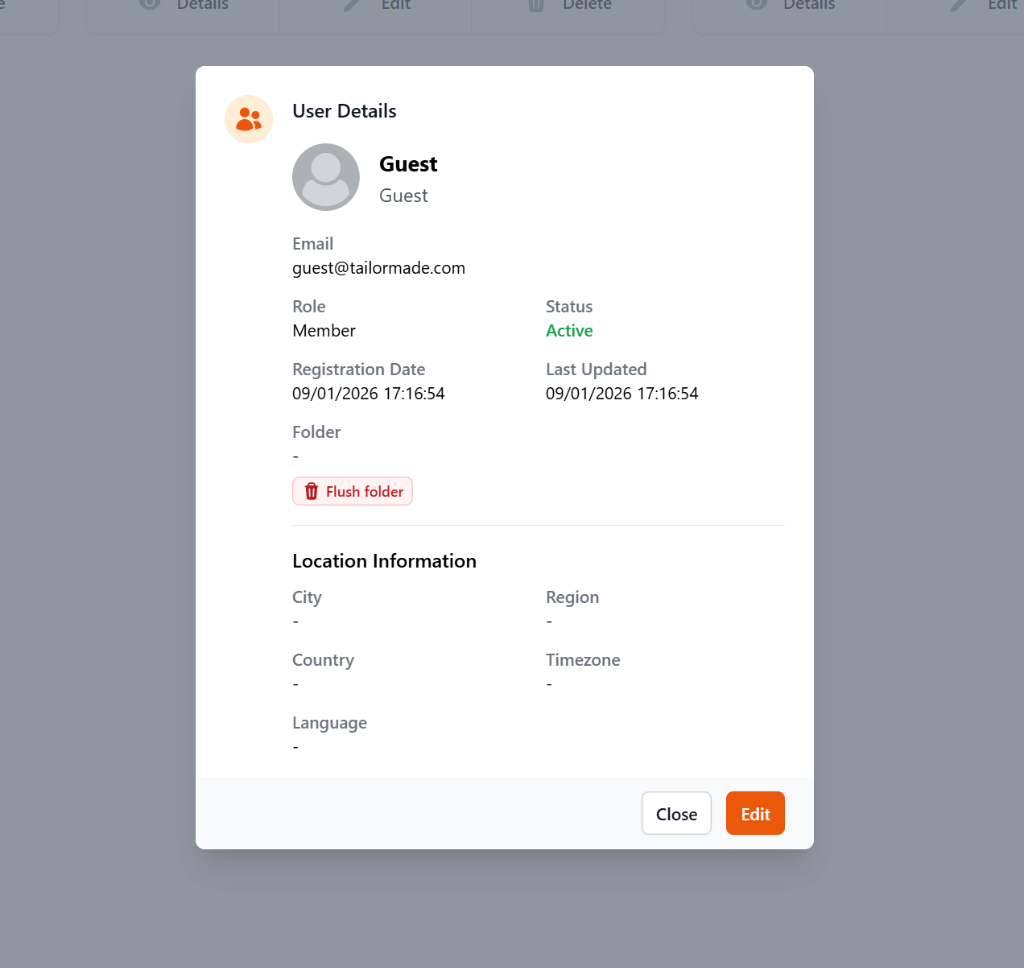
This modal provides extended information about the user, including:
- Lifecycle Dates: Exact timestamps for the user’s Registration Date and Last Updated time.
- Storage Control: If the user has a dedicated physical folder assigned to their tenant account, it will be listed here. Administrators can use the Flush folder button to instantly clear out all of the user’s cached CAD outputs and uploads.
- Location Information: Geographic tracking data (if configured), including City, Region, Country, Timezone, and Locale Language.
- Quick Edit: A direct shortcut to edit the user’s profile and permissions.